
SQL Express Download and Setup on Windows 11
A Step-by-Step Beginner Guide To Installing SQL Express


Setting up SQL Express on Windows 11 is one of the best ways to start learning databases, building applications, or managing local data without paying for a license. SQL Server Express is free, lightweight, and powerful enough for learning, testing, and small production projects.
This guide walks you through the entire SQL Express installation process on Windows 11, using clear steps and easy explanations.
What Is SQL Server Express?
SQL Server Express is a free edition of Microsoft SQL Server designed for:
Learning SQL databases
Local development and testing
Small desktop or web applications
Student and beginner projects
It includes the same core database engine as paid editions, with limits on database size and performance—perfect for most personal projects.
What You Need Before Installing SQL Express
Before starting the SQL Express setup on Windows 11, make sure you have:
A PC running Windows 11
Administrator access
An internet connection
At least 4 GB RAM (recommended)
About 6 GB of free disk space
Step 1: Download SQL Server Express
Open your web browser
Search for SQL Server Express download
Select the latest version labeled Express
Download the installer
Choose the option that includes SQL Server Management Studio (SSMS) or download SSMS separately (recommended).
Step 2: Run the SQL Express Installer
Right-click the installer
Select Run as administrator
Choose Basic installation (best for beginners)
The Basic install automatically configures most settings for you.
Step 3: Accept License and Start Installation
Review the license terms
Click Accept
The installer will begin downloading and installing required components
This step may take several minutes depending on your system.
Step 4: Install SQL Server Management Studio (SSMS)
SSMS is the tool you use to manage databases and run SQL queries.
Download SQL Server Management Studio
Run the SSMS installer
Accept defaults and install
Restart your computer if prompted
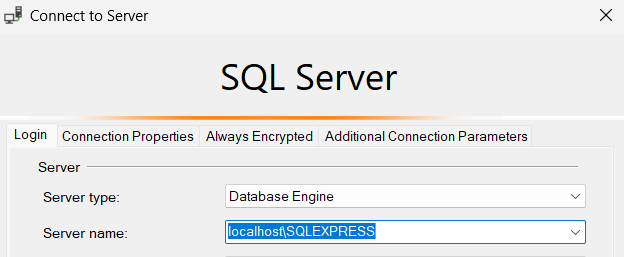
Step 5: Connect to SQL Express for the First Time
After installation:
Open SQL Server Management Studio
For Server name, enter:
localhost\SQLEXPRESS
Authentication: Windows Authentication
Click Connect
If connected successfully, your SQL Express setup on Windows 11 is complete.

Step 6: Verify Installation with a Test Query
To confirm everything works:
Click New Query
Paste the following SQL:
SELECT @@VERSION;
Click Execute
If you see version details, your SQL Server Express installation is working correctly.
Understanding Key SQL Express Components
Here’s what was installed:
Database Engine – Stores and processes your data
SSMS – Interface to manage databases
Local Instance – Runs only on your computer
Windows Authentication – Uses your Windows login
Common SQL Express Setup Issues and Fixes
Cannot Connect to Server
Ensure SQL Server (SQLEXPRESS) service is running
Check spelling:
localhost\SQLEXPRESS
SSMS Not Installed
Download SQL Server Management Studio separately
Restart after installation
Firewall Issues
Allow SQL Server through Windows Firewall
Use local connections for learning
When to Use SQL Server Express
SQL Express is ideal for:
Learning SQL queries
Practicing database design
Building small C#, ASP.NET, or Python apps
Testing before moving to a full SQL Server edition
Limitations of SQL Express
While powerful, SQL Server Express has limits:
10 GB max database size
Limited CPU and memory usage
No SQL Agent (job scheduling)
For most beginners, these limits won’t matter.
Best Practices After SQL Express Setup
Create practice databases
Learn CREATE TABLE, INSERT, SELECT
Back up databases regularly
Use meaningful table and column names
Practice relational design early
Final Thoughts
Setting up SQL Express on Windows 11 is simple, free, and beginner-friendly. Once installed, you have a professional-grade database system that supports learning, development, and real-world applications.
Whether you’re studying databases, building applications, or learning backend development, SQL Server Express is one of the best places to start.
Thank you for reading this blog article. If you’d like to explore my books, please visit my Amazon Author Page through the link below.
👉 Visit my Amazon Author Page to explore all titles:
https://www.amazon.com/stores/Dennis-Duke/author/B0DVQSM1Q8
Also, if you want to learn how to use AI and ChatGPT buy my ChatGPT book on Amazon — ChatGPT AI Prompt Engineering
This book teaches you everything you need to know about how to use ChatGPT for students, writers, entrepreneurs, or lifelong learners.

ChatGPT AI Prompt Engineering by Dennis Duke available on Amazon.
You can also check out my other blog on 3d-it.net to find more useful tips on -> How To Use ChatGPT For Prompt Engineering